Showing posts with label disk. Show all posts
Showing posts with label disk. Show all posts
Saturday, January 14, 2017
How to Test Disk Drive Performance benchmarks in Ubuntu
How to Test Disk Drive Performance benchmarks in Ubuntu
A while ago I was quite obsessed with testing hard disk performance. I purchased a HDD those days and it was a , lets called it "A" (I dont wanna create a prejudice since this manufacture has some great products) HDD. Interestingly, one of my friends had a Samsung HDD with the same hardware specifications (RPM, capacity ...) except, the Samsung HDD had like 256Kb or more physical Disk-cache in it.
Now to this day I dont know whether it was the small Cache difference caused it... but I did noticed a little boot time delay (with MS Windows actually). I tested those both HDD in my PC and Samsung always seems to be slightly faster.
Then, since MS Windows doesnt come with a hard drive performance test or a benchmark suite in other words, I used a free utility and it actually showed that the model "A" (theyre both 80GB and IDE ones) was in fact a bit slower!.
 |
| Disk utility that comes with Ubuntu... |
So, all Im just trying to say is that, if you brought a brand-new PC then testing your hard drive performance can come in handy because it lets you compare the drives actual performance with other ones (you can find results of other drives of manufactures online easily) thus you can even ask for a replacement.
Sorry to drag you along this long... but all Im trying to say is that, having a benchmark suite can come quite handy sometimes sine it helps you to go beyond your doubts :). Anyhow, unlike with MS Windows, now if you use Ubuntu as your main OS, then did you know that even without installing any third party utility, Ubuntu has a built in tool that lets you test disk performance with ease?.
Its called Disk Utility and RedHat seems to be the developer so it might be a default app that comes with Gnome classic desktop.
Main features...
*. Test Hard disk performance.
 |
| Remember, you can only perform Write Speed tests with HDD without any file systems on them... |
*. Displays other information such as File systems, partitions and their sizes, capacity, etc.
*. HDD Smart tests.
*. Format, Delete, Edit or Mount/Un-mount file systems.
You can launch this utility by pressing "Alt" + "F2" keys and put the below command and press enter (or go to: "System" -> "Administration" -> "Disk Utility" from your desktop menu as well)
palimpsest
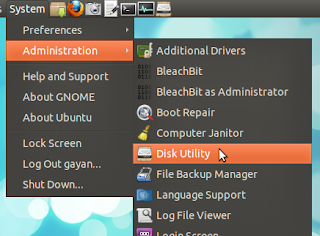
Once the program is loaded, select your HDD or optical drive, etc from the list to your left and then click on the "Benchmark" button to start the tests.
But remember, it has a limitation (oh great timing Gayan! :D). That is, if your HDD is formated and has a partition table on it, then this disk test utility cannot do Write tests. It can only only perform read speed of your HDD.
 |
| It can run your HDDs Smart (Self-Monitoring, Analysis and Reporting Technology) tests too |
But there are quite a few that we can use to do advanced benchmarks in Ubuntu and Ill write about few of em in the future. If you already know about them (Im pretty sure most of you geeks know :P), youre more than welcome to share it with me dudes (+ ladies too ;-)).
Anyhow, if all you want to is just perform a basic HDD read test + access other informations such as Smart feature (which is a special function that displays "warnings" just before your HDD is about to fail so you may have enough time to backup/recover the data, etc) then you dont have to get a separate one because Ubuntu Linux comes with a one of its own and it is certainly a pretty handy utility as far as Im concerned. Good luck.
Available link for download

Saturday, December 3, 2016
idoo Private Disk 3 0 0 FULL SERIAL
idoo Private Disk 3 0 0 FULL SERIAL

idoo Private Disk adopts the most advanced Secret-key Encryption of AES256. It can not only encrypt SD Cards, USB sticks, but also hard disks. It is a multi role encryption software. Should it encrypts successfully, other person cannot acquire anything even it being stolen.

Feature:
-Custom setting the size of encryption area
-All-type files encryption
-Free from all care
-Portability
-User-friendly interface
how to install
1 Download and Extract
2 Run setup file and complete installation.
3 Disconnect from internet
4 Run the software and use a given key to register.
5 Enjoy!
HOMEPAGE
DOWNLOAD LINK
idoo Private Disk 3.0.0 | 2.3 Mb
MIRROR
idoo Private Disk 3.0.0 | 2.3 Mb
Available link for download
Saturday, September 24, 2016
HP USB Disk Storage Format Tool 2 2 3
HP USB Disk Storage Format Tool 2 2 3
HP USB Disk Storage Format Tool 2.2.3
 |
| HP USB Disk Storage Format Tool 2,hp usb disk storage format tool 2.2.3,hp usb disk storage format tool 2.2.3 cnet,hp usb disk storage format tool 2.0.6,hp usb disk storage format tool 2.1.8,hp usb disk storage format tool 2.2.3 portable,hp usb disk storage format tool 2.2.3 free download,hp usb disk storage format tool 2.2.4,hp usb disk storage format tool 2.1.8.0,hp usb disk storage format tool 2.2.3.exe,hp usb disk storage format tool 2.06.exe |
Users have the possibility to easily create bootable disks, or change the file system from FAT to NTFS for their Flash drives.
HP USB Disk Storage Format Tool 2,hp usb disk storage format tool 2.2.3,hp usb disk storage format tool 2.18,hp usb disk storage format tool 2.0.6,hp usb disk storage format tool 2.1.8 download,hp usb disk storage format tool 2.2.3 deutsch,hp usb disk storage format tool 2.2.3 anleitung
Whats New in This Release:
· Allows creation of a FAT32 volume larger than 32 GB.
· Fixes installation issue where installation process stopped after the earlier version of software was uninstalled and the new software was not automatically installed. The installation process now restarts automatically to install the new software after uninstalling the older version.
HP USB Disk Storage Format Tool 2.2.3
Available link for download
Subscribe to:
Posts (Atom)