Showing posts with label system. Show all posts
Showing posts with label system. Show all posts
Friday, March 24, 2017
How to Reduce BOOT time and increase your system speed
How to Reduce BOOT time and increase your system speed
 first goto the bottom right hand corner of your computer if you see alot of icons start up there when you first start your computer then this is for you if you dont know already how to get rid of them.
Press your Start Button and go to "run"
now type in: msconfig
now you will get a box that pops up and will tell you bunch of stuff dont mess with anything else other than what I tell you otherwise you could do something really bad (possible) go to your "startup" tab on the top right of the screen where it usually is and click it.
Now you will have a closed in box with bunch of filenames n addresses and more boxes with checks in them. Now if your like me you dont want anything starting up when you start you computer up or while your even doing anything cause it slows you down.
now go to BOOT tab and goto advanced options
then select the number of processors to maximum.(by default it will be one ) this will increase your boot speed.
then save your settings..You are done
Available link for download

Thursday, December 8, 2016
How to remove default admin shares on your system
How to remove default admin shares on your system
 By default Windows 2000, Windows XP and WinNT automatically setup hidden admin shares (admin$, c$ and d$), this registry key will disable these hidden shares.
System Key:
[HKEY_LOCAL_MACHINE System CurrentControlSet Services LanmanServer Parameters]
Value Name: AutoShareWks
Data Type: REG_DWORD (DWORD Value)
Value Data: (0 = disable shares, 1 = enable)
This registry key actually stops the recreation of the shares, therefore it may be necessary to delete the shares through the drive properties also or you can also remove the shares through the Computer Management Console.
1. In Control Panel, double-click Administrative Tools, and then double-click Computer Management.
2. Click to expand Shared Folders, and then click Shares.
Value Name: AutoShareWks
Data Type: REG_DWORD (DWORD Value)
Value Data: (0 = disable shares, 1 = enable)
This registry key actually stops the recreation of the shares, therefore it may be necessary to delete the shares through the drive properties also or you can also remove the shares through the Computer Management Console.
1. In Control Panel, double-click Administrative Tools, and then double-click Computer Management.
2. Click to expand Shared Folders, and then click Shares.
3. In the Shared Folder column, right-click the share you want to delete, click Stop sharing, and then click OK.
Note : To remove the admin share for only the current session use the second method (Computer Management console), if you want a permanent removal, add the AutoShareWks registry.
Available link for download
Thursday, November 24, 2016
Increase virtual RAM to make system faster
Increase virtual RAM to make system faster

Just follow these steps to increase its size.
1) Hold down the Windows Key and Press the Pause/Break button at the top right of your keyboard.
Another way is Right-Clicking My Computer and then Select Properties.
2) Click on the Advanced tab.
3) Under Performance, click Settings.
4) Then click the Advanced tab on the button that pops up.
2) Click on the Advanced tab.
3) Under Performance, click Settings.
4) Then click the Advanced tab on the button that pops up.
5) Under Virtual Memory at the bottom, click Change.
6) Click the Custom Size button.
7) For the initial size (depending on your HD space), type in anywhere from 1000-1500 , and for the Maximum size type in anywhere from 2000-2500 .
8) Click Set, and then exit out of all of the windows.
9) Finally, Restart your computer.
10) You now have a faster computer and 1-2GB of Virtual RAM..!
Available link for download
Friday, October 7, 2016
How to take ownership of a system to enable all rights
How to take ownership of a system to enable all rights
 Do you know the fact that In windows 7 or vista,eventhough you enable yourself as the administrator during the installation of OS or from the user accounts,By default you are only a user and not given full administrative powers even if it look so.Here, in this article i am going to share,how to take the ownership of a system and make yourself as the real administrator of your system.By taking the ownership you can avoid all restrictions that is in windows 7 or vista by default.Just follow the steps and screenshots specified below.
HOW TO TAKE THE OWNERSHIP
1) Locate the drive where you installed your OS ( normally C drive ) and goto windows folder and search for explorer.exe
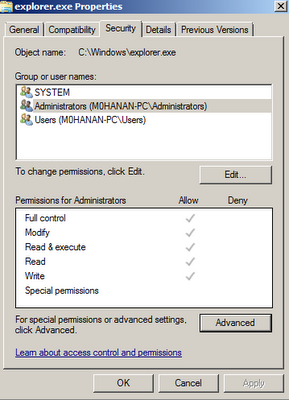
2 ) Just right click the explorer.exe file and click the advanced tab as shown below
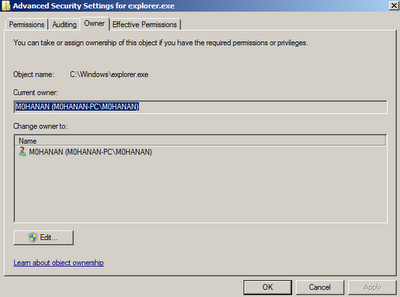
3 ) You can see a window as shown below,Just click the owner tab and click edit,a list of users will be shown to you just select the user that you given administrator rights( username that appers in the welcome screen ) and click ok.
4 ) Again right click on explorer.exe and click edit,You can see a window as shown below.select the users and tick full control option as seen below for the required users and thats it you are now the administrator by all means.
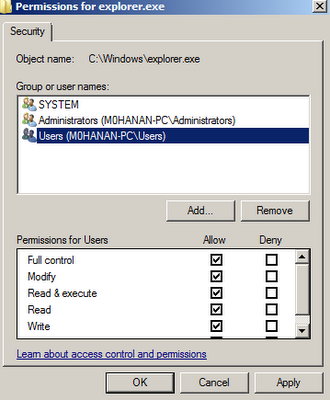
WHY SHOULD I TAKE OWNERSHIP
In windows 7 or vista,Even if you are the administrator of your system,By default it will restrict some rights.You can remove these restrictions only if you are the owner and you provide full control for the users or administrator.
NOTE: There are so many uses by taking the ownership of your system,I will give you in detail in following articles.so keep visting and if you found anything informative please pass your comments
Available link for download
Subscribe to:
Posts (Atom)