Monday, April 24, 2017
Install unsigned applications by hacking symbian S60 phones
Install unsigned applications by hacking symbian S60 phones
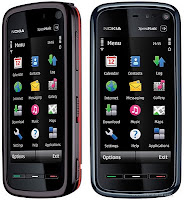 Have you ever tried to install any applications on your Nokia symbian S60 phones and end up getting a certificate error or expiration error.If you are a regular Nokia Symbian S60 phone user, you will be familiar with these errors and you may know the fact that it is not possible to install applications on it unless they are signed using a valid certificate.But there is simple trick to get rid of these errors by hacking your Symbian phone inorder to modify the phone’s firmware and completely bypass the mandatory signing requirement. So, once you are done with this one time hack, you should be able to install any compatible application including unsigned and those with an expired certificate.
 What is the Need for Signing Applications?
From the 3rd edition onwards, all the Symbian S60 applications need to be signed in order to ensure their integrity, so that it would not be possible for a third party to tamper with the application. Also, signing ensures that you always install applications from a trusted source.
However, there are many freeware and beta applications that come unsigned as the developers cannot afford to buy a symbian certificate. Hence, it can be a real nightmare for the users who need to install such applications on their phones. Inorder to hack your phone and intall the certificate and key to the root directory,you need a software called HelloOX2
What is HelloOX2?
HelloOX2 is an One step Hacking tool for all Symbian S60 3rd & 5th phone. Hacking mean that it can get full access to your phones system folders and files, with this capability, HelloOX2 could install a root certificate to your phone, and with the root cer & key pair you could sign any apps to install, include the Manufacturer capabilities requested apps. Completely fix annoying certificate error!
RomPatcher+ is a Manufacturer capabilities requested app, using it to patch the installserver youll be able to install any apps without signing anymore, but the only way to install it is Hacking your phone. HelloOX2 is here for everything you need. Hacking in only One step, just run it, it does all the rest for you. It have been tested and confirm working on almost all device, include the newest S60 phone model N86, N97, 5800, 5530......etc
- Map drive
- Unpack hacking files to the virtual drive
- Activate file system
- Unmap drive
- Install root certificate Install RomPatcher
1. Go to the OPDA Online signature website, get registered and login to your account.
2. Click on the “Apply Certificate” tab, enter the model number and the IMEI of your phone and then click on “Submit and Upload” button.
3. It will usually take up 24 hours for your certificate and key file to be generated and uploaded. To check the status of your certificate click on “My Certificate” tab. If the certificate is ready for the download you will see something as follows:

4. Download the certificate and the key file.
5. To sign your HelloOX2 application. with these certificate and key you need a software called Sissigner
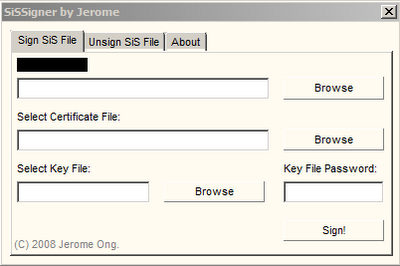
6. Open the SisSigner, load the HelloOX2.sis, certificate and the key file and click on “Sign”. Leave the “Key File Password” field blank.
7. Your HelloOX2 application is now signed and ready for the installation.
8. Install the signed HelloOX2 application on your phone and thats it you are done,You have hacked your Symbian phone and wont see messages like security errors,expired security errors etc anymore while installing any applicaton on your phone.
If you found anything useful in this article please pass your comments or do want any help,please feel free to ask
Available link for download

Tuesday, March 28, 2017
Installing Applications Under Linux
Installing Applications Under Linux
Installing rpm packages on Redhat,Fedora Based Systems : - For Fedora based systems rpm is the standard format for packages ,
To install a rpm package use command:
rpm -i PackageName
TO uninstall rpm package use :
rpm -e PackageName
PackageName is different from filename You used to install the package . This is actually the name of software that is installed.
If you have some file on your system and you dont recognize to which package it belongs use the command : -
rpm -qf filename with path
this would return the name of package the file belongs to.
If you have a rpm package but you are unsure about the package that is its name ,description etc use this command to get information about the package: -
rpm -qpi package name
If you want to know what files and where the rpm installs for a specific package use the following command : -
rpm -qpl packagename
If you want to upgrade an existing package on your system use :-
rpm -Uvh packagename
this command uninstalls the old version of the package and installs the new version of the package.This commands works even when there are no existing version of application installed hence this can be effectively used for Installing new packages.
However freshen(-Fvh) option dosent install new package if it dosent exist and only upgrades existing package on the system.This can be particularly useful if you have a number of packages and only want to upgrade the packages and dont want to install new packages.
You can use the command
rpm -Fvh *
For the above purpose
rpm -qa | less
Views list of installed applications , one screen at a time.
rpm -qa
List all applications installed on the system
rpm -qa | grep -i
To search if a particular package with
Installing packages under Debian GNU/LINUX based distributions : - Debian Linux based distributions like Ubuntu,Kubuntu ,Debian etc come with an excellent package management system (apt-get) which allow for installation of software with relative ease. Debian has been traditionally easier of Linux distributions in view of software installation.Debian Linux uses the deb package format for packaging software similar to the rpm package on Redhat and fedora based systems.
However before one starts using apt-get software repositories have to be set-up correctly on the local machine. Repositories are a collection of softwares stored on the Internet which could be used for installation of software using apt-get. The location of repositories is stored in the machine in the file /etc/apt/sources.list and could be modified for removing or adding additional repositories locations. A comprehensive list of available repositories could be found at www.apt-get.org .
After completing setting up of repositories one has to make local database on the machine storing information about softwares in sync with the repositories making the information about package available on the net locally available and could be done with command .
apt-get update
Now once the package information is cached locally one can Install applications or search for available package using command. However one has to be connected to Internet for installing software though software could be searched without the Internet.
apt-get install packagename
One important feature of apt-get is that user is shielded from the trouble of dependency . If a application needs additional libraries,package etc to be installed they are automatically searched from the repositories and installed before installing the application . This is one of the most important feature of installing application through apt-get.
To search for a particular package in the database stored locally.
apt-cache search packagename
To upgrade all the softwares on the system
apt-get upgrade
To remove a particular package
apt-get remove packagename
apt-get autoclean
Above option cleans packages in cache that are found useless or partially complete and deletes them.
Installing Debian(.deb) Packages :-
dpkg --install
To install a package or upgrade on the system.The name is the complete name of package file ending with .deb extension . If all the packages and libraries needed by the package your are installing is found on the system the installation proceeds and package is installed. However if some library is missing or files needed by package is not found on the system appropriate error would be shown and dpkg would exit showing error.
dpkg --remove
To Remove already installed application from the system. However this command does not remove the configuration file that may be needed for re installation of package however if you want to remove the configuration file also . Following command could be used :-
dpkg --purge
dpkg --status
dpkg --listfiles
Above command lists the name of all the files installed by package specified as
dpkg -l * | grep ^i | more
Above command displays all the installed application on the system page wise.
dpkg -l gtk* | grep ^i | more
Above command displays all the installed applications on the system beginning with name gtk.
However one can also use dselect to install or remove applications on the system. dselect is a menu driven application
for installing and removing application.
Installing applications using yum : -
Similar to apt-get on debian based system . Redhat and Fedora ships with yum for installation of applications from repositories.
The installation of software gets very easy with the help of yum.
yum stores the repositories address in the file /etc/yum.conf . Initially it has only few repositories and should be expanded to
include more for example i added the following :
[livna-stable]
name=Livna.org Fedora Compatible Packages (stable)
baseurl=http://rpm.livna.org/fedora/$releasever/$basearch/yum/stable
gpgcheck=1
[FedoraUS]
name=Fedora US $releasever - $basearch - Latest Packages
baseurl=http://download.fedora.us/fedora/fedora/2/i386/SRPMS.os/
[newrpms.sunsite.dk]
name=Fedora Core 2 NewRPMS.sunsite.dk
baseurl=http://newrpms.sunsite.dk/apt/redhat/en/i386/fc2
[dag]
name=Dag RPM Repository for Fedora Core 2
baseurl=http://apt.sw.be/fedora/$releasever/en/$basearch/dag
[dries]
name=Extra Fedora rpms dries - $releasever - $basearch
baseurl=http://dries.studentenweb.org/yum/fedora/linux/$releasever/$basearch/dries
After completing above one should run
yum -y check-update
This command downloads header , information about all the new software available and stores it locally.
yum -y list
Above command displays the list of all the packages available for installation.
yum -y list installed
Above command displays the list of all the packages installed on the system.
yum -y install packagename
Above command downloads and installs the package after searching it in the repositories. This also downloads all the dependencies
and installs it ,before installing the package.
yum update
Above command updates all the upgradable packages on the system.
yum remove
Above command removes the package specified as
yum list recent
Above command displays the list of all the applications recently installed or updated.
yum provides filename
above command displays the package the filename belongs to.
Installing from sources : Most of the Open-Source application available under Linux is available as Source Code which needs to be compiled at the users end. This approach though is time consuming since compiling an application takes a descent amount of time depending on the complexity of the application, Also installing from sources is a bit more complex than installing from binaries. But still it does have its benefits , The applications compiled can be significantly faster than the binaries downloaded since they are optimized for your system also there are many situations when binaries are not available for your Processor or Distribution and hence compiling application from the source is the only option.
Step 1: Download the source file from the Internet usually the source files are tar archives. Extract it into a directory using the tar command.
Example if you download the file : examples-0.1.2.tar.gz
Extract with: tar -xzvf examples-0.1.2.tar.gz
For archives starting with .tar.bz2 use bunzip2 filename
after extracting the file go into the directory of the created file and execute the configure script which configures the packages source file according to your system and checks if all the needed libraries are present ,This tells how software must be compiled.If an error is shown during the execution of configre script look for the missing library and install it and then rerun the configure script. After completion of the configure scripts execution "Makefile" is created which is then used to compile the package .
./configure
make
make: - This command starts compiling the application after reading the Makefile on how to install the applications binaries. This process takes the most of the time .
After doing this login to superuser mode and execute the following command to install the applications to a suitable location.
make install
make install : - This command installs the package usually in /usr/local folder.
However if for some reason the compilation does not take place successfully try reading README,INSTALL text files in the projects directory. Usually most of the projects include documentation about installing the applications in these files.
Autopackage : Autopackage is also one of the simpler ways of installing application . More can be read about it here :
www.autopackage.org
Article (C) 2006 Ambuj Varshney
For Linux On Desktop Blog

Get This Article as PDF

Available link for download
Monday, March 6, 2017
Ionium Ionic Premium Multipurpose App Full Applications download
Ionium Ionic Premium Multipurpose App Full Applications download


About
Ionium – Ionic Premium is an Ionic multipurpose starter kit to develop your Android and iOS apps. We provides tons of features and themes to develop your new brand apps. Everyone can use Ionium to create apps easily, customizable.
Don’t waste your time to develop features and themes. Just focus on your business and goal. We will keep update all features and themes.
Highlight

What will you get?


All Features
- Push Notification
- Local Notification – Sending local notification without internet connection
- Real Push Notification – Sending notification using Google Cloud Messaging
- Social Network Login
- Login using Facebook – Connecting apps with Facebook APIs
- Login using Google Plus – Connecting apps with Google Plus APIs
- Hardware Plugin
- Vibration – Turn on the vibration from the device
- Toast – Show a native toast (a little text popup) on iOS and Andoroid
- Dialog – Trigger alert, confirm and confirm windows
- Flashlight- Turn on the flash from the device
- Camera – Take a picture and video from native camera
- Device Information – Getting device information from the device
- Network Information – Getting network information from the device
- Google Maps
- Get Current Position – Getting your current position
- Native Navigation – Launch the native navigator from start to a destination
- CRUD – Create Read Update Delete
- Using LocalStorage – CRUD using LocalStorage
- Using Backand – CRUD using Backand
- Free Themes
- Dashboard – This is a home
- Newsfeed – Themes for a news apps
- E-Commerce – Themes for an e-commerce apps
- Hotel Booking – Themes for a hotel booking apps
- Social Media – Themes for social media like Instagram
- Features
- Pull-to-Refresh – Allow you to reload by pulling the screen
- Load More Infinitely – Allow you load more data by scrolling
- Pinch & Zoom Images – Allow you to pinch and zoom an images
- Back to Top – Using a button click to back to the top of the screen
- Youtube Video – Playing a youtube video from Youtube API
- Social Share – Native sharing using ngcordova
- Call, Email & SMS – Sending text message via email and SMS natively
- Image Picker – Multple image selection
- Admob – Presents Admob ads natively from javascript
- Ionic Material
- Material Components – All Ionic components themed to be Google Material Design
- Material Motion List – Ionic Material list motion
Important
In order to modify the app, you have to know the basic knowledge of HTML, CSS and AngularJS. Also, you have to have basic understanding about Ionic Framework.
You can read our documentation for details or read the documentation from Ionic official installation guide.
Best Price| | Preview
DOWNLOAD Ionium - Ionic Premium Multipurpose App (Full Applications)
Available link for download
Monday, January 16, 2017
Installing Google Applications in Ubuntu 8 04 Hardy Heron
Installing Google Applications in Ubuntu 8 04 Hardy Heron
Google has released a number of interesting softwares for Linux platform now because all of these softwares are closed sourced :( and better free open source alternatives are available these packages are not installed by default in most of the popular Linux distributions. Also being closed source means they are not available in Official repositories too. In this article we
Note : All the installation instructions below are for 32 bit processor .
Google Picasa 2.7
Google Picasa is one of the more user friendly photo management software available , it is available on both Windows and Linux . It runs on Linux on top of Application Layer called Wine that allows Windows application to run on Linux . However this has some disadvantage firstly some windows application dont work as well as they do on windows , there are occasional application crashes, application freezes , also UI is bit less responsive however applications are still usable .
With version 2.7 Google Picasa brings a number of interesting features not available in many free open source photo management software available on the Linux platform like integration with the Web Album , improved support for importing images from camera etc .
Now to install Google Picasa launch terminal from (Applications -> Accessories -> Terminal) and issue the following command in the terminal window:
wget http://dl.google.com/linux/deb/pool/non-free/p/picasa/picasa_2.7.3736-15_i386.deb
sudo dpkg -i picasa_2.7.3736-15_i386.debAfter completing above step you can launch Google picasa from (Applications -> Other -> Picasa )
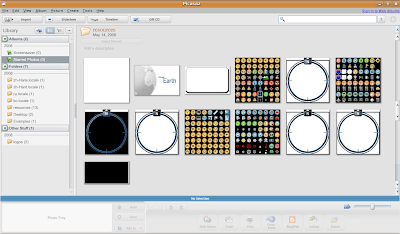 Google Picasa in Action
Google Earth
Google Earth is probably one of the most popular and controversial Google application providing you with satellite view of the world to install Google Earth on your Ubuntu desktop follow the steps below.
Below we are giving link to 4.3 Beta version of google earth so it might be bit unstable if you want a stable version you can download it from this link :
wget http://dl.google.com/earth/client/current/GoogleEarthLinux.bin
chmod +x GoogleEarthLinux.bin
and
./GoogleEarthLinux.bin
After issuing the above command you will find a dialog box like this asking for location where to install Google Earth
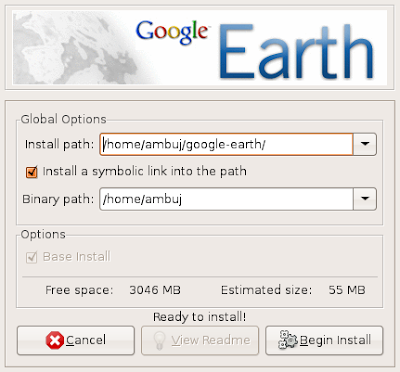 After installation is over you can launch Googleearth from (Applications -> Internet -> Google Earth )
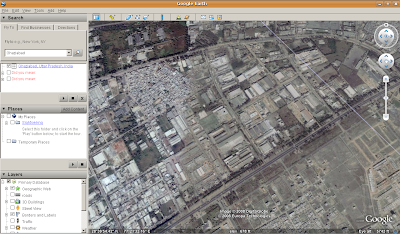 Google Earth in Action
Google Desktop
Google Desktop allows one to full text search of a users e-mail, computer files, music, photos, chat, and Web pages viewed,OpenOffice documents , PDF files and more .Now similar tools already existed on Linux like beagle (supported by Novell ) , meta tracker etc .However Google Desktop search is not based on any of these tools and uses its proprietary algorithms to search for files on the computer. So to install Google Desktop issue the following command in the terminal window:
wget http://dl.google.com/linux/deb/pool/non-free/g/google-desktop-linux/google-desktop-linux_current_i386.deb
sudo dpkg -i google-desktop-linux_current_i386.debAfter completing above step you can launch Google Desktop from (Applications -> Google Desktop -> Google Desktop ) initially it will take bit of your computers idle time resources as it indexes files in your computer and creates database of them. You can change setting of Google Desktop from (Applications -> Google Desktop -> Google Desktop Preferences ).
Now once you launch Google Desktop you will see a Google Desktop icon on the top right corner of the menubar at the top as shown in the screenshot below.
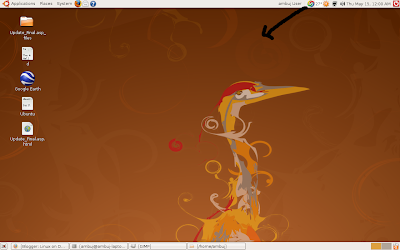
By rightclicking on the icon you can set various preferences , also by double left clicking the icon brings up search box allowing you to search for files among the indexed files.
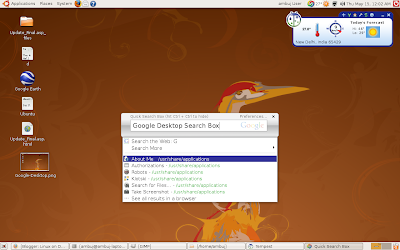 Google Desktop Search box
Article Written by : Ambuj Varshney (blogambuj@gmail.com)
For Desktop on Linux Blog , http://linuxondesktop.blogspot.com
(C) 2008 , Ambuj Varshney
Available link for download
Friday, January 13, 2017
HTC wildfire review 5 must have Wildfire applications Complete guide to HTC wildfire
HTC wildfire review 5 must have Wildfire applications Complete guide to HTC wildfire
A week before I bought HTC wildfire which is an entry level android smartphone. It sports quite a punch when compared to its competition and has a lot of features to keep you busy. I am doing an honest review so that you can make a choice when it comes to the end.
HTC wildfire is dubbed as the love child of Nexus one and HTC desire or Mini Desire. In some terms, it seems to be true. Its the successor to HTC tattoo and its a worthy one. The finishing is impeccable and much more professional so is the design as compared to tattoo. The phone is sturdily build however the screen is smudge prone. The phone has ARM6 528 Mhz processor on board with 384 MB ram. Its good for light weight gaming but is unable to render 3d games and play high def videos. The phone lags in its default HTC sense UI hence you are recommended to use some professional UI launchers like Go Launcher EX, Launcherpro and ADW. Bet the lag is attributed to CPU. Make sure your applications are compatible to them as my HTC music player crashed a lot more when I installed Launcher pro. Wildfire shines in the connectivity department.
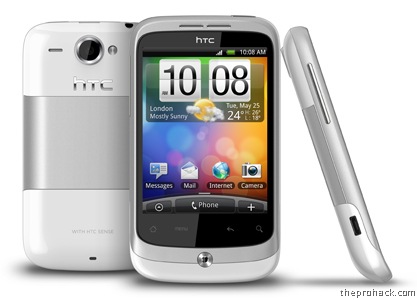
The phone has Froyo 2.2.1 and is unable to be rooted at the moment. Hence I am unable to provide you how it can be optimized when rooted and how it performs as a rooted toy. I am waiting for the next Unevoked/superoneclickroot update so that i can finally squeeze the juice out of my phone.
I do tested some penetration testing applications on it and you can read my post regarding them here.
Pros
- Better touch
- 384 MB ram
- 5 MP camera with flash
- Excellent connectivity,A must have for social-networking enthusiastic
- Overall a Good bundle
Cons
- Pricier as compared to the competition
- low res screen
- Could have had a much better cpu
An average android phone is incomplete without applications, I recommend these apps as a must have -
- Launcher Pro – If you want to make your UI super smooth, this is the way to go.
- GO SMS – the best sms application, even better than chomp sms.
- SWYPE – tired of cramped keypad ? Try swype and all your worries will be gone.
- Opera Mini – the best cellphone bnrowser out there, if you want flash support, you can go with Dolphin and Skyfire though.
- Bar Code scanner – A must have for every android phone. Get anyone from android app market.
My recco – buy it if you are tight on budget, its better than its counterparts if you are not into gaming and watching videos on your cellphones.
Available link for download