Monday, March 27, 2017
Installing Adobe Flash Player 10 Beta on Hardy Heron
Installing Adobe Flash Player 10 Beta on Hardy Heron
Adobe Flash is one of the most popular software used to distribute interactive media over the internet with approximately 95% of Internet Connected computers having flash preinstalled.
Adobe on Thursday released Beta version of their latest Adobe Flash Player for Mac OS X ,
Adobe Flash Player 10 includes a number of revolutionary features like automatically adjusting video quality without the need of re buffering between video played between Flash Player and Adobe Flash Media server providing a video which could be played un-interrupted, new Text Engine paving way for creating interactive e-books and online publications in additional languages in future , improved visual performance , native 3-D transformation and animation capabilities ( which essentially means since it is native performance would be especially good and file size would be small as all the processing would be done in client side ) , an extensible rich-text layout, graphics processing unit hardware acceleration ,a new low level Audio API solving audio latency problem , Adobe Pixel Blender filters and a number of graphics related addition.
Here are new features in Adobe Flash Player 10 taken from Adobe Flash website :
Key New Features
3D Effects - Easily transform and animate any display object through 3D space while retaining full interactivity. Fast, lightweight, and native 3D effects make motion that was previously reserved for expert users available to everyone. Complex effects are simple with APIs that extend what you already know.
Custom Filters and Effects - Create and share your own portable filters, blend modes, and fills using Adobe Pixel Bender™, the same technology used for many After Effects CS3 filters. Shaders in Flash Player are about 1KB and can be scripted and animated at runtime.
Advanced Text Layout - A new, highly flexible text layout engine, co-existing with TextField, enables innovation in creating new text controls by providing low-level access to text offering right-to-left and vertical text layout, plus support for typographic elements like ligatures.
Enhanced Drawing API - Runtime drawing is easier and more powerful with re-styleable properties, 3D APIs, and a new way of drawing sophisticated shapes without having to code them line by line.
Visual Performance Improvements – Applications and videos will run smoother and faster with expanded use of hardware acceleration. By moving several visual processing tasks to the video card, the CPU is free to do more.
The Immediate change users would notice is website using flash would be much snappier owing to fact Adobe Flash Player 10 instead of using only CPU for processing now uses Graphic card also for processing. Though Adobe still hasnt released 64 bit version of Adobe Flash Player which is bit disappointing .
Impressed you can read more about new additions to Adobe Flash Player 10 from Release Notes provided here .
Note : Since Adobe Flash Player 10 is a beta version so it will be buggy , so use it at your own risk .
Install Adobe Flash Player 10(beta) on Ubuntu 8.04 Hardy Heron
Removing existing version of Adobe Flash Player
If you already have Adobe Flash installed you can remove it by issuing the following commands in the terminal window( Applications -> Accessories -> Terminal )
sudo apt-get remove flashplugin-nonfree
Now we download the v.10 Package :
wget http://download.macromedia.com/pub/labs/flashplayer10/flashplayer10_install_linux_051508.tar.gzand now
tar -xvzf flashplayer10_install_linux_051508.tar.gzThis will extract files in directory install_flash_player_10_linux. Now to install finally issue the following commands :
sudo mv install_flash_player_10_linux/libflashplayer.so /etc/alternatives
sudo ln -s /etc/alternatives/libflashplayer.so /usr/lib/xulrunner-addons/plugins/or alternatively if you want to use installer that came with Adobe Flash Player 10 to install Adobe Flash Player issue the following command :
cd install_flash_player_10_linux
./flasplayer-installer
After completing above step start Firefox(if firefox was running close it and start again) and in address bar type "about:plugins" you should see Adobe Flash Player 10 listed as shown in the figure below :

To remove the package and Install Flash Player v.9 issue the following commands in the terminal window :
sudo rm /etc/alternatives/libflashplayer.so
sudo rm /usr/lib/xulrunner-addons/plugins/libflashplayer.so
and finally to install Flash Player v.9 back :
sudo apt-get install flashplugin-nonfree
Article Written by : Ambuj Varshney (blogambuj@gmail.com)
For Desktop on Linux Blog , http://linuxondesktop.blogspot.com
(C) 2008 , Ambuj Varshney
Available link for download

Monday, January 16, 2017
Installing Google Applications in Ubuntu 8 04 Hardy Heron
Installing Google Applications in Ubuntu 8 04 Hardy Heron
Google has released a number of interesting softwares for Linux platform now because all of these softwares are closed sourced :( and better free open source alternatives are available these packages are not installed by default in most of the popular Linux distributions. Also being closed source means they are not available in Official repositories too. In this article we
Note : All the installation instructions below are for 32 bit processor .
Google Picasa 2.7
Google Picasa is one of the more user friendly photo management software available , it is available on both Windows and Linux . It runs on Linux on top of Application Layer called Wine that allows Windows application to run on Linux . However this has some disadvantage firstly some windows application dont work as well as they do on windows , there are occasional application crashes, application freezes , also UI is bit less responsive however applications are still usable .
With version 2.7 Google Picasa brings a number of interesting features not available in many free open source photo management software available on the Linux platform like integration with the Web Album , improved support for importing images from camera etc .
Now to install Google Picasa launch terminal from (Applications -> Accessories -> Terminal) and issue the following command in the terminal window:
wget http://dl.google.com/linux/deb/pool/non-free/p/picasa/picasa_2.7.3736-15_i386.deb
sudo dpkg -i picasa_2.7.3736-15_i386.debAfter completing above step you can launch Google picasa from (Applications -> Other -> Picasa )
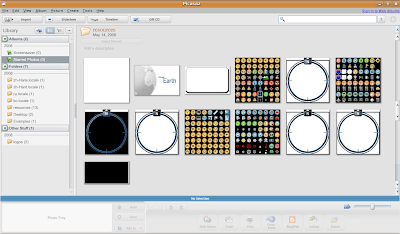 Google Picasa in Action
Google Earth
Google Earth is probably one of the most popular and controversial Google application providing you with satellite view of the world to install Google Earth on your Ubuntu desktop follow the steps below.
Below we are giving link to 4.3 Beta version of google earth so it might be bit unstable if you want a stable version you can download it from this link :
wget http://dl.google.com/earth/client/current/GoogleEarthLinux.bin
chmod +x GoogleEarthLinux.bin
and
./GoogleEarthLinux.bin
After issuing the above command you will find a dialog box like this asking for location where to install Google Earth
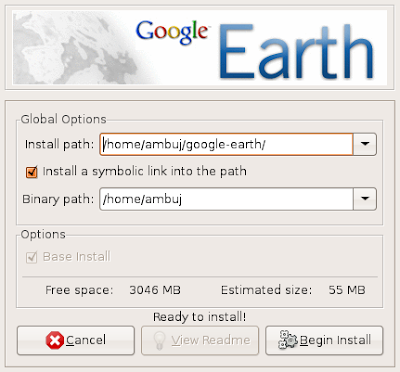 After installation is over you can launch Googleearth from (Applications -> Internet -> Google Earth )
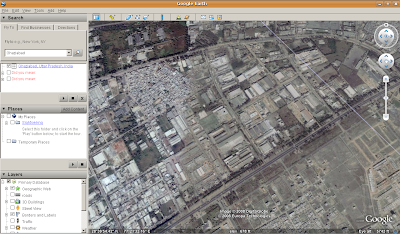 Google Earth in Action
Google Desktop
Google Desktop allows one to full text search of a users e-mail, computer files, music, photos, chat, and Web pages viewed,OpenOffice documents , PDF files and more .Now similar tools already existed on Linux like beagle (supported by Novell ) , meta tracker etc .However Google Desktop search is not based on any of these tools and uses its proprietary algorithms to search for files on the computer. So to install Google Desktop issue the following command in the terminal window:
wget http://dl.google.com/linux/deb/pool/non-free/g/google-desktop-linux/google-desktop-linux_current_i386.deb
sudo dpkg -i google-desktop-linux_current_i386.debAfter completing above step you can launch Google Desktop from (Applications -> Google Desktop -> Google Desktop ) initially it will take bit of your computers idle time resources as it indexes files in your computer and creates database of them. You can change setting of Google Desktop from (Applications -> Google Desktop -> Google Desktop Preferences ).
Now once you launch Google Desktop you will see a Google Desktop icon on the top right corner of the menubar at the top as shown in the screenshot below.
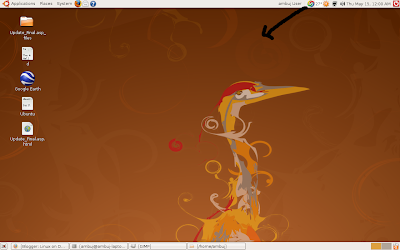
By rightclicking on the icon you can set various preferences , also by double left clicking the icon brings up search box allowing you to search for files among the indexed files.
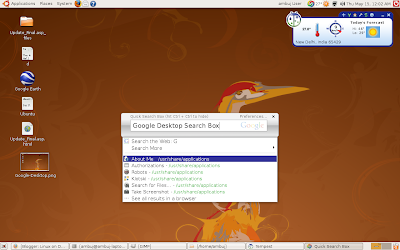 Google Desktop Search box
Article Written by : Ambuj Varshney (blogambuj@gmail.com)
For Desktop on Linux Blog , http://linuxondesktop.blogspot.com
(C) 2008 , Ambuj Varshney
Available link for download